Thursday, July 23, 2009

Photo Retouching: Under eye curves


Have you ever come across a situation with under eye circles and try to tried to use the healing brush and the clone stamp to cover them up but then get frustrated with the textures don't match? Well that has happened to me plenty!! I watched a tutorial by Chris Tarantino about a month ago when I was down at LOOK3 in Charlottesville Virginia that made an interesting point. Its not so much the texture of the skin that needs to change, but more the pigmentation and color.

In doing my own research to try and combat under eye circles (much of which are caused my stress and over working :); I have found out a little bit of background information that may come in handy when thinking about ways to rectify them in photos. The skin under your eyes is much thinner than the rest of your skin on your face, thus is more transparent. Un-oxygenated blood settles under your eyes and can be seen through the thin skin that lies underneath your eyes. This is what causes dark circles. (Disclaimer: I am a photographer, not a doctor).
Heres a way to retouch out dark circles without touching the texture of the skin at all. And as far as I am concerned, the best way to tackle under eye circles.

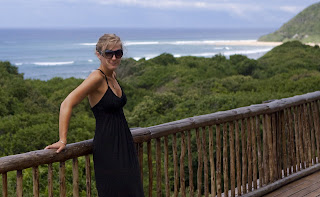
Here is the unretouched image in its original state. As you can see, she's already a gorgeous girl that doesn't need much retouching at all. This is just to show the example.

I started by clicking the quick mask button on the lower left part of your tool bar. Then with a soft edged paint brush, draw in the area that you want the effect to be applied to. Make it look like your subject has a black eye (but in this case, it's bright red).


Then hit the Q key to exit out of quick mask mode and second, hit Shift+Command+I to select inverse. You should now have marching ants around the area you want to focus on.
With your selection still present, go to Select-Modify-Feather to feather the area by 15 pixels. Then REPEAT.
After you have feathered your selection, you can Command+H to hide the marching ants. Now go to your adjustment layers icon and click on a curves adjustment layer.

On the RGB Channel, take your midtones up until they match the surrounding skin brightness. Make sure you have the Preview button checked so you can see the changes in the image as you play around with the curve.
Then change your channel to the Red channel and increase the midtones there as well. This will increase the saturation of the red times in that area to combat the blue that is there to begin with.
Heres what the left eye looks like after the changes.
Then I repeated the whole thing on the other eye. Clicking on the quick mask button.

Then drawing in the area that I wanted to changes to be applied to by using a feathered brush to color in under her other eye.
Then hit the Q key again to exit out of quick mask mode and second, hit Shift+Command+I to select inverse. You again see marching ants around the area you want to focus on.
Then repeat the feathering of the selection by going to Select-Modify-Feather to feather the area by 15 pixels...again. Then REPEAT.... again.

Once you have feathered your selection, you can create another curves adjustment layer.


Make the same changes to the right eye as we did to the left on both the RGB channel and the Red channel. The reason you do the two eyes differently is because 9 times out of 10, one single adjustment won't work for both eyes.

Here is the finnished product! Good job guys!!


Please post your comments by clicking the link below. If you've got questions, please pose them in our Retouchers and Retouching Discussion Threads.

READ MORE (Full Post and Comments)

Friday, May 15, 2009

Photo Retouching: Thinking outside the box...I mean frame!


Have you ever almost had that perfect shot from a vacation or shoot where one of the most important parts of the picture is out of the frame? One of the things I have learned through my retouching is to think outside the box...I mean frame! Just because your canvas ends doesn't mean your photo has to! Ill show you how!

LEARN HOW By Clicking READ MORE...

On my trip to South Africa, we went to a game park and I had no idea how close the animals would get to us so while I was prepared with my 70-200mm and a doubler (2x), I was caught at a disadvantage when the animals got close to me without enough time to take off the doubler. This was the photo that I was left with.

Step One: Increase the canvas size. You are going to want to go into Image>Canvas Size and open up your canvas to be larger than the original image because you will be adding things to it.

When you get into the Canvas Size window, you will see a nine by nine square with arrows in it. This tells you where the image will sit on the canvas when the extra canvas is added. Since I want to add more canvas to the left side of my image, I have chosen to change the gray square one over to the right by clicking on it.


Step Two: Start rebuilding the part of the image that is most important. In my case, the part that is most important is the giraffe's mouth. Since I have another giraffe in the same photo that is not cut off, I have selected those pixels to copy and paste over to the giraffe that is cut off.

Select the mouth with the marquee tool, and press (cnt/cmd) C to copy and (cnt/cmd) V to paste. Don't be alarmed if you don't see the paste effects. The selection has been pasted directly over the original pixels so you may not see them at all. Then press (cnt/cmd) T to transform and (cnt/cmd) H to hide the lines (it will be easier for you to line up the edges if you can't see those white lines. Use the arrow keys to move the copied selection into place. Once it's in it's place you can press the enter key to accept the transform or the check mark at the top of your toolbar.

Once again that is: (cnt/cmd) C, (cnt/cmd) V, (cnt/cmd) T, (cnt/cmd) H.


Step Three: I saw that there was a small color change between the first giraffe and the second, and I needed to fix that. Press (cnt/cmd) L to bring up your levels pallet
and take down the midtones a tad.


Step Four: Start building the other areas of the image. The more prominent the features are in your background, the harder this part will be for you. The biggest suggestion I can make for you is not to grab pixels from the same area and use them to fill in the black area. You will end up with the "bad clone stamp effect" as I like to call it.

Peoples' eyes and brains are constantly looking for patterns in images thats why they are so easy to spot on a bad photoshop job.

This bush was important because it is a large part of the picture. So I knew I needed to continue it on in my black space. I copied it and pasted it like I did in step 2, but this time since it is going to be the opposite side of the bush, I needed to flip this piece of the image vertically so it would look like the other side of the bush.

Press (cnt/cmd) T to transform your selection and while holding down shift, drag the box/line on the right side of the box all the way past the left line and over further. Now you have flipped the selection. Press enter to accept the changes.

Do this a few more times from different parts of the image so you don't create any patterns.
Move the selections into place using the arrow keys or your pen/mouse.

This is what your image should look like after you have filled in the space on the left of the photo with different areas of bush from around the photo.

Here is a close up image:

The next step is to use the clone stamp and healing brush to get rid of those lines in your image.

Here is your final image! Congratulations!


Please post your comments by clicking the link below. If you've got questions, please pose them in our Retouchers and Retouching Discussion Threads.

READ MORE (Full Post and Comments)

Saturday, March 7, 2009

Photo Retouching: Retoucher to ReTeacher

I am pleased to announce that I am going to start teaching retouching seminars at Washington School of Photography! I'm really excited to be passing on my talents to other people that are eager to learn.
If you are in the area, please feel free to come in and take a seminar.


Please post your comments by clicking the link below. If you've got questions, please pose them in our Retouchers and Retouching Discussion Threads.

READ MORE (Full Post and Comments)

Tuesday, February 24, 2009

Photo Retouching: Flickr's Retouching Love Story


From what I read here It seams like retouching has brought two people to fall in love while being an ocean away from each other. Rosie Hardy and Aaron Nace met on Flickr and started collaborating on image manipulation.


Please post your comments by clicking the link below. If you've got questions, please pose them in our Retouchers and Retouching Discussion Threads.

READ MORE (Full Post and Comments)

Wednesday, January 14, 2009

Photo Retouching: Selecting Using Color Range

Using your photoshop tools to their maximum capacity is essential when asking your software to improve an image.


I was asked by Chris Crumley (a brilliant photographer out of Virginia Beach, VA) to retouch an image. I didn't really know what to do with the blank space to the left of the image and wanted the model to look "placed with thought" and look lit professionally.

To get the rest of the coral, I used the coral that was already in the image. And I selected it so intricately by using Select - Color Range. Its located in the Select menu up at the top.

After I selected the coral by using the eye dropper, I used the Select - Modify option to contract the selection to get out all the water's blue color from the selection.

I copied and pasted the selection onto a new layer and pressed "command t" to flip the layer horizontally and vertically.

Then I selected the new layer with the coral on it and pressed "command u" to change the hue and saturation of the new coral so it didn't match the color of the other coral so perfectly, to confuse people so they wouldn't think the coral is a copy.

These are the kinds of little nuances that keep people from seeing the retouching done on an image.

See the larger image here!!


Please post your comments by clicking the link below. If you've got questions, please pose them in our Retouchers and Retouching Discussion Threads.

READ MORE (Full Post and Comments)

Tuesday, December 16, 2008

Photo Retouching: The Tan without the Cancer


When it comes to winter in Washington, theres a bunch of places you'd rather be. Like somewhere tropical or warm. One way to ease those winter blues is to give your subjects that sun-kissed look without tanning beds or smelly sprays.
Read after the jump to learn how.

READ MORE (Full Post and Comments)


And here is the rest of it.We start off with a photo of a girl that is not quite as tan as she would like, so we will take the necessary steps to change that for her.
Step One: Create a blank later and fill it with a brown color that is derived from the skin tine of the girl.

Here you will need to change what you fill the layer with so it says color.
It will prompt you to pick a color wit h the color picker. My preference is to start with a color on your model already and then pick a color slightly warmer and slightly darker than what you sampled from the model.The circle is the color that I sampled from the model and the arrow is the color I chose to use as the fill color for the layer.

Step Two: Change your blend mode to overlay.
Step Three: Add a layer mask by OPTION clicking on the button below. This will give you a mask that is completely black so nothing will be showing.
Click on the mask itself and paint with your brush tool with the color white over the area you would like to be affected by the color. Once you have completed your mask and it looks like everything is painted in, you can option click on the mask on your layer menu and you can see your mask. I painted at 30%-40% opacity with my brush so you can see some of the brush strokes that were left. To blur some of the brush strokes on the image, I wanted to add a gaussian blur to the mask.

Here are my adjustments in the gaussian blur window.
Here is where I am as of now and she is still a bit too orange. So I need to tone down the color and change the hue a bit.

Make a Hue/Saturation adjustment layer.

Select the reds from the drop down menu and add these adjustments to the Hue/Saturation Layer.

Your Hue/Saturation layer will be affecting the whole image at this point to to make it only affect the skin you are going to click on the mask on the layer below it and hold down option while you drag it to the Hue/Saturation layer.

You will be asked if you want to replace the mask, click yes. Here is the final tanned image. Good job everyone!!! If you have any questions feel free to email me at Kristina@KristinaSherk.com


Please post your comments by clicking the link below. If you've got questions, please pose them in our Retouchers and Retouching Discussion Threads.

READ MORE (Full Post and Comments)

Monday, December 1, 2008

Photo Retouching: A Retouchers Dream

While I was up at Photo Plus Expo in NYC, I took a seminar with Chris Alvanas in which he showed me one of the most useful tools.
Eyelash and Eyeshadow brushes from DeviantArt.com, they have lots of different brushes like this one if you simply search for "eyelash brushed" on the search bar.

How to download located after the break.

Click "download" from the website and it will save the file onto your desktop. You will need to unzip the file (some computers have software for this already installed, but if you don't, you can always control-click (right click) and press "uncompress" from your options.

The next step is to find where the brushed are located already on your computer. You can locate them by clicking on the mac magnifying glass and entering ".abr" into the field.
Jump down to the second or third listing, click on it, and it should show you the path on where that brush lives. Mine says "Macintosh HD > Applications > Adobe Photoshop CS4 > Presets > Brushes" Control-click (right click) and press Open Enclosing Folder which should tale you right to the folder where they reside.

Drag and drop the brush set from your desktop into that folder. Restart Photoshop and they should be in your brush palette.

If you are working on a PC you can watch this video on youtube.


Please post your comments by clicking the link below. If you've got questions, please pose them in our Retouchers and Retouching Discussion Threads.

READ MORE (Full Post and Comments)